
To create and send e-mails, you can use MailBee.NET SMTP component. That's how it happens:
There are lots of other options, however. Just to name a few:
In the diagram below, you can find what you can feed to MailBee.NET classes on input and which options you have in order to save or send the resulting e-mail.
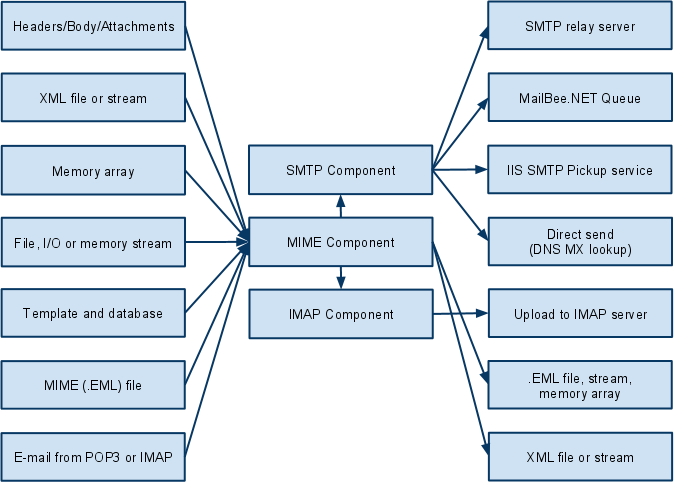
You can also enable various options and apply a number of transformations to the message being composed. For instance:
Now, let's assume the message has been composed and you're about to send it through your SMTP relay server (the most common scenario). A few tips here:
Once the message has been successfully sent to the SMTP server, MailBee.NET's job is over. This, however, does not guarantee the intended recipient has received the message. The recipient's server may seem to accept the message but then bounce it back, put it into Spam folder or just delete it silently. You can learn more in Troubleshoot common sending errors and non-delivery section if you face such issues.
.NET Framework provides System.Net.Mail classes which can be used to send e-mails to SMTP servers.
The below are comparison tables of MailBee.NET and System.Net.Mail features related to creating and sending e-mails. They also provide quick access to the documentation on all the features.
| SMTP protocol and e-mail delivery | MailBee | System |
|---|---|---|
| Send to SMTP relay server more | + | + |
| Send to SMTP relay via SSL (dedicated SSL port) more | + | + |
| Client and server SSL certificates more | + | + |
| Send to SMTP relay via STARTTLS (SSL over regular port) more | + | |
| Send to SMTP relay on non-standard ports more | + | + |
| Send directly (without SMTP relay) more | + | |
| Send through multiple servers for increased throughput more | + | |
| Fail-over relay servers and fail-over "direct send" mode more | + | |
| Throttle SMTP connection to stay within established limits more | + | |
| Send to queue (e.g. IIS SMTP Pickup service) more | + | + |
| Upload to IMAP server (e.g. into Sent Messages folder) more | + | |
| Re-send (forward, reply) e-mail received via POP3 or IMAP more | + | |
| Validate e-mail address (syntax, DNS, test connection) more | + | |
| Custom SMTP commands more | + | |
| DNS queries (MX, TXT/SPF, TXT/DKIM, reverse DNS) more | + | |
| ESMTP authentication (basic) more | + | + |
| ESMTP authentication (NTLM, Integrated Windows) more | + | + |
| ESMTP authentication (CRAM-MD5, GSSAPI, OAuth) more | + | |
| POP-before-SMTP authentication more | + | |
| Connection via proxy (SOCKS4, SOCKS5, HTTP) more | + | |
| Exceptions and error codes more | + | + |
| Monitor progress with events more | + | |
| File and memory logging of SMTP session more | + | |
| Can be used in web (ASP.NET), desktop and console applications more | + | + |
| Async methods | + | + |
With regard to creating e-mails, MailBee.NET provides more features such as automatic importing of embedded pictures in HTML content, security facilities like S/MIME and DKIM, mail merge.
| Creating e-mails | MailBee | System |
|---|---|---|
| Plain-text and HTML e-mails with alternate views more | + | + |
| Auto-provision plain-text view for HTML content more | + | |
| Attachments from files or memory more | + | + |
| Attachment from existing e-mail (forward e-mail as attachment) more | + | |
| Linked resources (e.g. embedded images) more | + | + |
| Auto-embed linked resources more | + | |
| Get HTML body (and linked resources) from web page more | + | |
| Message from XML (deserialize XML into e-mail) more | + | |
| Message from MIME data (e.g. relay e-mail from disk) more | + | |
| Create any custom header more | + | + |
| To, CC, BCC, From, ReplyTo more | + | + |
| Priority more | + | + |
| Importance, Sensitivity more | + | |
| Request reading confirmation (read receipt) more | + | |
| International e-mails, encodings, UTF-8 more | + | + |
| Access to generated MIME data more | + | |
| Request delivery confirmation more | + | + |
| Assign tracking ID for delivery confirmation more | + | |
| Mail merge more | + | |
| DKIM and DomainKeys signature more | + | |
| S/MIME encrypted and signed e-mail more | + |
Besides that, MailBee.NET gives you much more control how e-mails are generated, how SMTP connection is established, how to react if certain recipients were rejected by the server, and so on.
With MailBee.NET events, you can not only monitor the operation progress (being a passive observer), but also actively interfere into the execution. For instance, you can alter the message which is about to be sent, or cancel sending a particular message in mail merge series, and so on.
MailBee.NET exception model is far more developed in comparison to System.Net.Mail so that you can programmatically respond to many specific errors accordingly their nature. For instance, it's not easily possible to distinguish between "bad login or password" and "bad sender's e-mail address" errors with System.Net.Mail while MailBee.NET provides separate exceptions for them.
However, whether to use MailBee.NET or System.Net.Mail is not "either-or" question. MailBee.NET can work together with System.Net.Mail to let you make the transition process smoother.
For instance, you can export System.Net.Mail.MailMessage into MailBee.Mime.MailMessage and then send the resulting e-mail with MailBee.NET SMTP component. The rest of your code which composes e-mails with the help of System.Net.Mail remains intact. See Send e-mail created from System.Net.Mail.MailMessage topic for details.
The opposite scenario (export MailBee.Mime.MailMessage into System.Net.Mail.MailMessage) is also supported.
To start using MailBee.NET in your projects, add MailBee.NET Objects reference to your project. You can use NuGet Packager Manager console for that:
Install-Package MailBee.NET
If NuGet is not an option (for instance, you have older version of Visual Studio), see below.
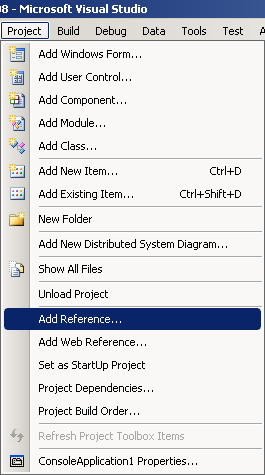
In Project menu, click Add a reference:
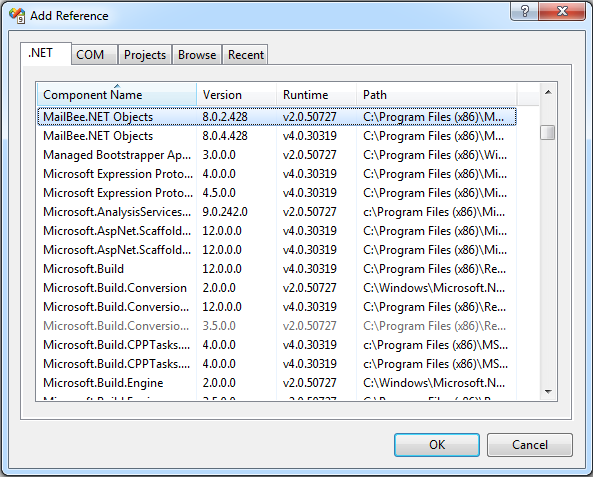
Then, under .NET tab, locate MailBee.NET Objects. If you installed multiple versions of MailBee.NET Objects, select v2.0 in Runtime column if you're using .NET 2.0/3.5. If you're using .NET v4.5 or higher, select v4.0 Runtime:
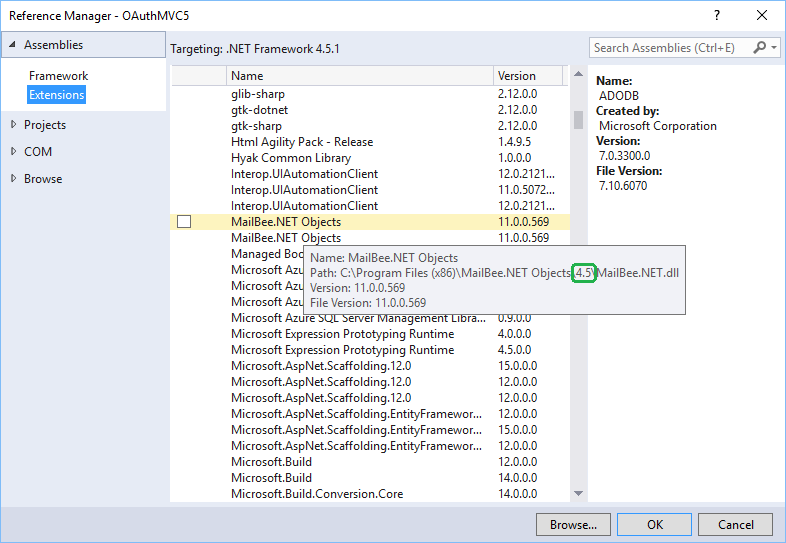
In newer versions of Visual Studio, Runtime column is not there and path to the dll is not shown by default so you may need to hover mouse cursor over to see the path (and determine the version). In this case, it's .NET 4.5 version of MailBee.NET.dll:
Click OK to add the reference to your project. MailBee.NET entry should appear in References list of your project.
Now, import MailBee.NET namespaces to the beginning of your source code files where you'll use MailBee.NET.
When creating and sending e-mails, you'll typically need some of these namespaces:
using MailBee;
using MailBee.Mime;
using MailBee.Security;
using MailBee.SmtpMail;
Imports MailBee
Imports MailBee.Mime
Imports MailBee.Security
Imports MailBee.SmtpMail
If you're using direct send mode (without an SMTP relay server) or your code interoperates with Imap or Pop3 components, you may also need to import these namespaces as well:
using MailBee.DnsMX;
using MailBee.Pop3Mail;
using MailBee.ImapMail;
Imports MailBee.DnsMX
Imports MailBee.Pop3Mail
Imports MailBee.ImapMail
Now, you need to specify your trial or permanent MailBee.NET license key to unlock the product. If you do not yet have a key, you can generate the trial key with "Get a Trial Key" utility (available in Programs / MailBee.NET Objects menu).
You can specify the key in a number of ways (Windows registry, app.config or web.config file, directly in the code). This guide shows two methods of that: hard-coded key and key stored in app.config (web.config for ASP.NET).
Using Windows registry is not recommended as your application may be lacking permission to access the required registry branches. If you still need to use the registry (e.g. if your application is distributed with the source code so that you cannot embed the key there), refer to Using License Keys topic in MailBee.NET Objects documentation for details.
Before the first use and creating any instances of Smtp class, set the static MailBee.Global.LicenseKey property to assign the license key. It's assumed you've already imported MailBee.SmtpMail namespace with using (C#) or Imports (VB) directives.
MailBee.Global.LicenseKey = "MN100-0123456789ABCDEF-0123";
MailBee.Global.LicenseKey = "MN100-0123456789ABCDEF-0123"
You can also create and unlock instances of Smtp class, passing the license key as a parameter of Smtp(string) constructor. Again, it's assumed you've already imported MailBee.SmtpMail namespace.
Smtp mailer = new Smtp("MN100-0123456789ABCDEF-0123");
Dim mailer As New Smtp("MN100-0123456789ABCDEF-0123")
Alternatively, you can add app.config to your project (if you do not already have it there) and specify MailBee.NET SMTP license key there.
For ASP.NET application, web.config is always available so that you can immediately edit it, but for other application types you may have to add app.config manually.
The below we are using Visual Studio 2008 but it's all the same with newer Visual Studio versions as well. For instance, we are using Visual Studio 2010 in similar topic in IMAP and POP3 guide.
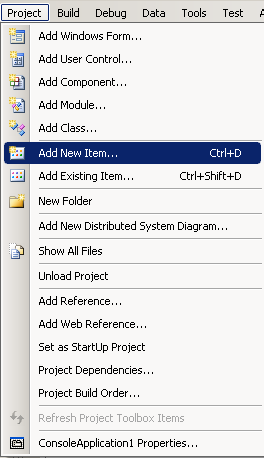
In Projects menu, click Add New Item:
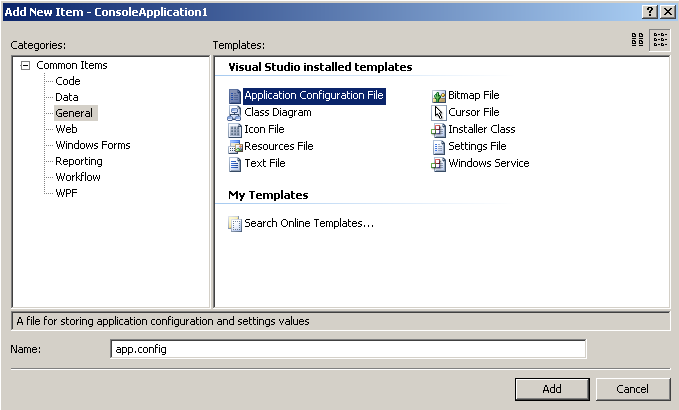
Select Application Configuration File and click Add:
In app.config or web.config, locate <appSettings> entry in <configuration> section (if it's not there, create it), and add MailBee.NET license key as follows:
<?xml version="1.0" encoding="utf-8" ?>
  <configuration>
    <appSettings>
      <add key="MailBee.Global.LicenseKey" value="MN100-0123456789ABCDEF-0123"/>
  </appSettings>
</configuration>
Note that <appSettings> may also appear as <applicationSettings> in your case.
If <appSettings> originally looked as <appSettings/> (self-closing tag syntax), you'll need to unfold it to <appSettings></appSettings> so that you could insert <add key .../> there.
You can also specify the key in machine.config file. This will enable access to the license key to all applications on the computer so that there will be no need to specify the license key in each application separately. For instance, this is the preferred way if you a hosting provider willing to let your hosting clients create and run applications which use MailBee.NET without disclosing your license key to them.
We'll send a simple plain-text e-mail using the static (Shared in VB) Smtp.QuickSend method. No need to create an instance of Smtp class for that:
Smtp.QuickSend("john@domain.com", "jane@company.com", "Question", "How are you?");
Smtp.QuickSend("john@domain.com", "jane@company.com", "Question", "How are you?")
Here and below, we assume that MailBee.SmtpMail namespace is already imported and MailBee.Global.LicenseKey is specified (in the code or in app.config or web.config file).
E-mail addresses can contain display names, and you can specify multiple recipients (comma-separated):
Smtp.QuickSend("John Doe <john@domain.com>",
    "Jane Doe <jane@company.com>, noname@example.com", "Question", "How are you?");
Smtp.QuickSend("John Doe <john@domain.com>", _
    "Jane Doe <jane@company.com>, noname@example.com", "Question", "How are you?"
Other overloads of Smtp.QuickSend method allow you to send HTML e-mails with attachments or user-supplied MailMessage objects, all with a single line of code.
If Smtp.QuickSend method fails, it throws MailBeeException which you can catch and analyze in your code. If the method succeeds, this means the message has reached the end recipient's server.
Smtp.QuickSend sends e-mails via DNS MX lookup, not using any SMTP relay server (so-called "direct send" mode). This mode has some limitations described in Send e-mail directly without SMTP relay server topic. Also, because no instance of Smtp object is created, you cannot configure anything or check the log file in case if trouble-shooting needed, etc.
Now let's create an instance of Smtp class and send a simple plain-text e-mail via an SMTP relay server:
Smtp mailer = new Smtp();
mailer.SmtpServers.Add("mail.here.com");
mailer.From.AsString = "John Doe <john.doe@here.com>";
mailer.To.AsString = "Jane Doe <jane.doe@there.com>";
mailer.Subject = "Meeting request";
mailer.BodyPlainText = "Can we meet today?";
mailer.Send();
Dim mailer As Smtp = New Smtp()
mailer.SmtpServers.Add("mail.here.com")
mailer.From.AsString = "John Doe <john.doe@here.com>"
mailer.To.AsString = "Jane Doe <jane.doe@there.com>"
mailer.Subject = "Meeting request"
mailer.BodyPlainText = "Can we meet today?"
mailer.Send()
mail.here.com is the host name of your SMTP relay server.
No SMTP authentication is used in this sample (anonymous mode). See Send if server requires SMTP authentication topic on how to enable authentication if required.
If Smtp.Send method still throws an exception, you may need to fine-tune SMTP authentication, enable SSL, or open SMTP ports in the firewall. See Send if server requires SSL (like Gmail), MS Exchange SMTP issues or Troubleshoot common sending errors and non-delivery topics for details.
This sample sends an HTML e-mail with attachment (MailBee.NET will also auto-generate the plain-text version of the supplied HTML). The e-mail is sent through an SMTP relay server without authentication:
Smtp mailer = new Smtp();
mailer.SmtpServers.Add("mail.here.com");
mailer.From.AsString = "John Doe <john.doe@here.com>";
mailer.To.AsString = "Jane Doe <jane.doe@there.com>";
mailer.Subject = "Meeting request";
mailer.BodyHtmlText = "<html><body>Can we meet today?</body></html>";
mailer.AddAttachment(@"C:\Temp\details.doc");
mailer.Send();
Dim mailer As Smtp = New Smtp()
mailer.SmtpServers.Add("mail.here.com")
mailer.From.AsString = "John Doe <john.doe@here.com>"
mailer.To.AsString = "Jane Doe <jane.doe@there.com>"
mailer.Subject = "Meeting request"
mailer.BodyHtmlText = "<html><body>Can we meet today?</body></html>"
mailer.AddAttachment("C:\Temp\details.doc")
mailer.Send()
If you need more advanced features or control over building HTML e-mails or attaching files, see Compose complex e-mail with multiple parts and attachments guide.
Smtp object itself provides a very limited set of e-mail message properties, and Reply-To, CC or BCC headers are not available there. This is because Smtp object is for sending e-mails, not for creating them. The object responsible for creating e-mails is MailMessage of MailBee.Mime namespace. It assembles the message properties into the MIME data which can then be transmitted to the SMTP server.
Smtp object has Smtp.Message property which references the MailMessage object to be sent. For instance, Smtp.Subject is just a shorter form of Smtp.Message.Subject, and Smtp.AddAttachment is a shorter form of Smtp.Message.Attachments.Add.
The code below demonstrates how to set From, Reply-To, To, CC, BCC in different ways:
Smtp mailer = new Smtp();
mailer.SmtpServers.Add("mail.here.com");

// Set From address as a single string.
mailer.Message.From.AsString = "John Doe <john.doe@here.com>";

// Add 1st Reply-To address.
mailer.Message.ReplyTo.AddFromString("John Doe <jdoe@here.com>");

// Add 2nd Reply-To address (no display name).
mailer.Message.ReplyTo.Add("noname@here.com");

// Specify "To" as a single string containing 2 e-mail addresses.
mailer.Message.To.AsString = "Jane Doe <jane.doe@there.com>, Alice <alice@there.com>";

 // Add 3rd and 4th "To" addresses.
mailer.Message.To.AddFromString("mike@nodisplayname.com, Liz <liz@somewhere.com>");

// Specify 2 "CC" addresses separately, with different syntax.
mailer.Message.Cc.AddFromString("Bob Smith <bob@example.com>");
mailer.Message.Cc.Add("john.doe@here.com", "John Doe");

// Specify BCC (no need to supply display name as BCC header will be removed anyway).
mailer.Message.Bcc.Add("boss@here.com");
mailer.Message.Subject = "Meeting request";
mailer.Message.BodyHtmlText = "<html><body>Can we meet today?</body></html>";

mailer.Message.Attachments.Add(@"C:\Temp\details.doc");
mailer.Send();
Dim mailer As Smtp = New Smtp()
mailer.SmtpServers.Add("mail.here.com")

' Set From address as a single string.
mailer.Message.From.AsString = "John Doe <john.doe@here.com>"

' Add 1st Reply-To address.
mailer.Message.ReplyTo.AddFromString("John Doe <jdoe@here.com>")

' Add 2nd Reply-To address (no display name).
mailer.Message.ReplyTo.Add("noname@here.com")

' Specify "To" as a single string containing 2 e-mail addresses.
mailer.Message.To.AsString = "Jane Doe <jane.doe@there.com>, Alice <alice@there.com>"

' Add 3rd and 4th "To" addresses.
mailer.Message.To.AddFromString("mike@nodisplayname.com, Liz <liz@somewhere.com>")

' Specify 2 "CC" addresses separately, with different syntax.
mailer.Message.Cc.AddFromString("Bob Smith <bob@example.com>")
mailer.Message.Cc.Add("john.doe@here.com", "John Doe")

' Specify BCC (no need to supply display name as BCC header will be removed anyway).
mailer.Message.Bcc.Add("boss@here.com")

mailer.Message.Subject = "Meeting request"
mailer.Message.BodyHtmlText = "<html><body>Can we meet today?</body></html>"
mailer.Message.Attachments.Add("C:\Temp\details.doc")
In other words, it's possible to specify e-mail addresses in many ways so that you can always choose the most convenient method for you (and even combine different methods).
To learn more on setting e-mail headers, refer to Set From, Reply-To, Return-Path, To, CC, BCC, Priority and other headers in e-mail guide.
Most SMTP servers require clients to authenticate themselves in order to relay e-mails to external domains. In most cases, you just need to set your SMTP username and password in addition to the SMTP relay host name:
Smtp mailer = new Smtp();
mailer.SmtpServers.Add("mail.domain.com", "username", "password");
Dim mailer As Smtp = New Smtp()
mailer.SmtpServers.Add("mail.domain.com", "username", "password")
The above enables MailBee.NET to perform ESMTP authentication before sending the e-mail. Note that some servers might require you to use your full e-mail address (username@domain.com or even domain.com\username), not just username.
If your SMTP server requires another sort of authentication (like POP-before-SMTP) or you would like to learn more, refer to SMTP authentication in detail guide.
Most SMTP relay servers nowadays require clients to establish secure SSL connection with the server. MailBee.NET can automatically enable SSL mode for some popular e-mail services (like Gmail) but in general case you should specify SSL settings manually.
Usually, SMTP-over-SSL port is 465 (while the regular SMTP port is 25). If you specify port 465 for SMTP server, MailBee.NET will automatically enable SSL mode for it:
Smtp mailer = new Smtp();
mailer.SmtpServers.Add("mail.domain.com", "username", "password").Port = 465;
Dim mailer As Smtp = New Smtp()
mailer.SmtpServers.Add("mail.domain.com", "username", "password").Port = 465
By default, MailBee.NET uses the most secure SSL protocol supported by the server (usually, TLS).
You can also explicitly specify SSL mode for any port and set other parameters. To learn more on SMTP-over-SSL configuration, refer to SMTP over SSL (Gmail.com, Live.com, certificates) guide.
You can use EmailAddress.ToIdnAddress, EmailAddressCollection.ToIdnAddress or EmailAddress.EscapeIdnDomain methods to convert domain part of a e-mail address, a collection of addresses or any e-mail string into Punycode format. This translates international domain names to ASCII. You can safely IDN-ize normal Latin e-mail addresses as well, they will be left intact.
// Add IDN-ized email to To list.
mailer.To.Add(new EmailAddress("user@international.domain").ToIdnAddress());

// IDN-ize already existing To list.
mailer.To.AsString = "user@international.domain";
mailer.To = mailer.To.ToIdnAddress();

// IDN-ize From.
mailer.From = new EmailAddress("user@international.domain").ToIdnAddress();

// IDN-ize any string.
mailer.Message.Headers["Some custom header"] = EmailAddress.EscapeIdnDomain("user@international.domain");
' Add IDN-ized email to To list.
mailer.To.Add(New EmailAddress("user@international.domain").ToIdnAddress())

' IDN-ize already existing To list.
mailer.To.AsString = "user@international.domain"
mailer.To = mailer.To.ToIdnAddress()

' IDN-ize From.
mailer.From = New EmailAddress("user@international.domain").ToIdnAddress()

' IDN-ize any string.
mailer.Message.Headers("Some custom header") = EmailAddress.EscapeIdnDomain("user@international.domain")
Account part of e-mail address is not touched. IDN is about domains, not account names. To send to international local names, domain IDN-ize is not enough, you also need to encode e-mail addresses' local parts into UTF-8. To achieve that, you can just tell MailBee to encode all requests it sends to the server in UTF-8 rather than in system's default encoding:
mailer.RequestEncoding = System.Text.Encoding.UTF8;
mailer.Send();
mailer.RequestEncoding = System.Text.Encoding.UTF8
mailer.Send()
To send without any SMTP relay server with a single of code and without creating an instance of Smtp class, you can use Smtp.QuickSend method. See Send e-mail in a single line of code topic for examples.
The below is a typical example of sending an e-mail without SMTP relay:
Smtp mailer = new Smtp();
mailer.DnsServers.Autodetect();
mailer.From.Email = "joe@domain.com";
mailer.To.Add("mike@company.com");
mailer.Subject = "Test message";
mailer.BodyPlainText = "Just a test";
mailer.Send();
Dim mailer As Smtp = New Smtp()
mailer.DnsServers.Autodetect()
mailer.From.Email = "joe@domain.com"
mailer.To.Add("mike@company.com")
mailer.Subject = "Test message"
mailer.BodyPlainText = "Just a test"
mailer.Send()
Note that direct send has a number of limitations in comparison with normal send through SMTP relay server. To learn more, refer to Direct send without SMTP relay server guide.
To check if an e-mail address is valid, you can use Smtp.ValidateEmailAddressSyntax and Smtp.TestSend methods:
To check bulk of addresses, consider using EmailAddressValidator component.
Smtp mailer = new Smtp();

// Get ready for DNS MX lookup.
mailer.DnsServers.Autodetect();

// Set sender and recipient.
mailer.From.Email = "j.doe@domain.com";
mailer.To.Add("lisa@company.com");

// Validate the e-mail address syntax.
Console.WriteLine(
    Smtp.ValidateEmailAddressSyntax("lisa@company.com").ToString());

// Verify the e-mail address.
Console.WriteLine(
    mailer.TestSend(SendFailureThreshold.AnyRecipientsFailed).ToString());
Dim mailer As New Smtp()

' Get ready for DNS MX lookup.
mailer.DnsServers.Autodetect()

' Set sender and recipient.
mailer.From.Email = "j.doe@domain.com"
mailer.To.Add("lisa@company.com")

// Validate the e-mail address syntax.
Console.WriteLine( _
    Smtp.ValidateEmailAddressSyntax("lisa@company.com").ToString())

' Verify the e-mail address.
Console.WriteLine( _
    mailer.TestSend(SendFailureThreshold.AnyRecipientsFailed).ToString())
Refer to Validate e-mail address via syntax check and DNS MX lookup topic for the more advanced sample, and other notes.
The sample below sends an e-mail message and saves it into a file upon sending. All "expected" exceptions are caught. "Expected" are those like SMTP and file I/O errors. However, we don't catch license key errors (although you can do this if you need to). The exception handling is structured, we use different handlers for different exceptions and fall back to the general MailBeeException if nothing more special found:
Smtp mailer = new Smtp();

mailer.SmtpServers.Add("smtp.here.com", "joe@here.com", "secret");

mailer.Message.From.AsString = "Joe D. <joe@here.com>";
mailer.Message.To.AsString = "Carl S. <carl@there.com>";
mailer.Message.Subject = "Greetings from Joe";
mailer.Message.BodyPlainText = "Hi there!";

bool sent = false;

try
{
    mailer.Send();
    sent = true;
    Console.WriteLine("Sent successfully");
}
catch (MailBeeSmtpNegativeResponseException e)
{
    Console.WriteLine("Exception message: " + e.Message);
    Console.WriteLine();
    Console.WriteLine("MailBee.NET error code: " + e.ErrorCode.ToString());
    Console.WriteLine();
    Console.WriteLine("SMTP response code: " + e.ResponseCode.ToString());
    Console.WriteLine();
    Console.WriteLine("SMTP reply: " + e.ResponseString);
    Console.WriteLine();
    Console.WriteLine("Server IP: " + e.RemoteEndPoint.Address.ToString());
}
catch (MailBeeException e)
{
    Console.WriteLine("Exception: " + e.ToString());
    Console.WriteLine();
    Console.WriteLine("Exception message: " + e.Message);
}

if (sent)
{
    try
    {
        mailer.Message.SaveMessage("C:\Temp\message.eml");

        Console.WriteLine("Sent successfully");
    }
    catch (MailBeeIOException e)
    {
        Console.WriteLine("Exception message: " + e.Message);
        Console.WriteLine();
        Console.WriteLine("MailBee.NET error code: " + e.ErrorCode.ToString());
        Console.WriteLine();
        Console.WriteLine("InnerException: " + e.InnerException.ToString());
    }
}
Dim mailer As New Smtp()

mailer.SmtpServers.Add("smtp.here.com", "joe@here.com", "secret")

mailer.Message.From.AsString = "Joe D. <joe@here.com>"
mailer.Message.To.AsString = "Carl S. <carl@there.com>"
mailer.Message.Subject = "Greetings from Joe"
mailer.Message.BodyPlainText = "Hi there!"

Dim sent As Boolean = False

Try
    mailer.Send()
    sent = True
    Console.WriteLine("Sent successfully")
Catch e As MailBeeSmtpNegativeResponseException
    Console.WriteLine("Exception message: " & e.Message)
    Console.WriteLine()
    Console.WriteLine("MailBee.NET error code: " & e.ErrorCode.ToString())
    Console.WriteLine()
    Console.WriteLine("SMTP response code: " & e.ResponseCode.ToString())
    Console.WriteLine()
    Console.WriteLine(("SMTP reply: " & e.ResponseString))
    Console.WriteLine()
    Console.WriteLine("Server IP: " & e.RemoteEndPoint.Address.ToString())
Catch e As MailBeeException
    Console.WriteLine(("Exception: " & e.ToString()))
    Console.WriteLine()
    Console.WriteLine(("Exception message: " & e.Message))
End Try

If sent Then
    Try
        mailer.Message.SaveMessage("C:\Temp\message.eml")

        Console.WriteLine("Sent successfully")
    Catch e As MailBeeIOException
        Console.WriteLine(("Exception message: " & e.Message))
        Console.WriteLine()
        Console.WriteLine("MailBee.NET error code: " & e.ErrorCode.ToString())
        Console.WriteLine()
        Console.WriteLine("InnerException: " & e.InnerException.ToString())
    End Try
End If
The special case is asynchronous methods. If the method which executes on a worker thread throws an unhandled exception, the thread silently dies and the application never knows what happened. Always catch all exceptions in worker threads and analyze them.
For more details on processing errors and exceptions in MailBee.NET, refer to Handle exceptions and errors guide.
When your SMTP relay server is MS Exchange, keep in mind the following facts:
server.SmtpOptions = ExtendedSmtpOptions.NoChunking (assuming server is SmtpServer object instance).
You can enable logging of SMTP conversation between MailBee.NET client and the server in a number of ways. You can use logging into a file or memory, subscribe to Smtp.LogNewEntry event which raises each time a new log record is about to be created, and much more.
Logging is useful for trouble-shooting and tracking all the activity for later use. The code below enables logging of all the activity of Smtp object into a file and clears that file:
Smtp mailer = new Smtp();
mailer.Log.Enabled = true;
mailer.Log.Filename = @"C:\Temp\log.txt";
mailer.Log.Clear();
Dim mailer As Smtp = New Smtp()
mailer.Log.Enabled = True
mailer.Log.Filename = "C:\Temp\log.txt"
mailer.Log.Clear()
To learn more on file or memory logging, refer to Log files and memory logs in detail guide.
Typical issues you may face and their possible remedy:
mailer.SmtpServers[0].HelloDomain = "sending.host.com" in C# syntax (assuming mailer is Smtp instance and there is an SmtpServer object already in the collection). See Send custom Hello message to server topic for details.mailer.DirectSendDefaults.HelloDomain = "sending.host.com".As a general suggestion, read carefully the exception message as it may already provide some useful information, and always enable logging when you face sending errors. The log file is a very helpful source of the debug information which you can use to understand and fix the issue or send it to AfterLogic Support Team for further analysis.
To learn how to deal with logging, see Log file of SMTP conversation topic. To submit the log file to AfterLogic, create a ticket at http://helpdesk.afterlogic.com and upload the file there.
Copyright © 2006-2026 AfterLogic Corporation. All rights reserved.